Booking a railway ticket in India can't get easier than this as the railway ministry launched IRCTC ticket booking with SMS. The facility will allow anyone to book railway ticket without an Internet connection. Railway Minister Mallikarjun Kharge has just announced that train reservations can now be made by sending an SMS. The service is expected to help people without Internet access make reservations from their mobile phones. It was rumoured that the government will run a pilot project to allow SMS ticket booking starting July 01, 2013. Special budget was allotted to railways in the budget of 2013.
Launching the new service, Mr. Kharge said, "The online booking through IRCTC has now grown up to about 45% of total reserved tickets. This has eased the rush at counters to a great extent. While internet access in India is only about 10%, mobiles are now in easy reach and more than 80% people in our country use mobile phones.". One of the senior railway official said that this mechanism of ticket booking could easily take over the Internet based booking facility.
In addition, a menu-dialling service (USSD) is also being made available. The services are currently available to registered users of IRCTC. Before we provide you with the detailed steps of how to make the bookings, we'd like to inform you that MakeMyTrip launched an SMS based bus booking service [just a few days after the bus ticket booking major Redbus got acquired by iBibo group] and it's no wonder that SMS booking's getting more importance than ever before, at least in Indian subcontinent.
According to IRCTC official website, the SMS based booking service is currently being offered by three groups: Bharat BPO, Frequency Weekly and Pyro Group. There are three steps involved-
1. Send a booking SMS in a specified format (see below) along with the DOJ (Date Of Journey), Class (II, II, AC etc.), Train Number and Passenger Details. Once you send your SMS, an SMS will arrive on your mobile informing you about the availability of the seats.
FORMAT:
Example:
If the first message is sent successfully, you will receive following information through SMS from IRCTC -
Transaction ID
Ticket Amount
Service Charge
Total Amount payable
Seat Availability
Example:
2. In the second SMS, you will have to make the payment. This is easier than you may think. There are two ways to do it:-
Use Mobile Money Identifier (Link: MMID) & an OTP aka One Time Password.
Prepaid Wallet Cards aka mWallets
Viz: PAY <Transaction ID as received> <IMPS is the mode of payment)> <Your MMID as received from the bank> <OTP is your one time password received for this transaction> <IRCTCUserID>
Example:
3. Receive a booking confirmation from IRCTC.
Example:
Important points to be noted - only the regular tickets can be booked through this service. You will not be able to book tickets available through quota or tatkal through this service just as yet. Booking Tickets Via Airtel Money is also easy, you may follow these steps -
1. Register for Airtel Money: Dial *400#. 2. Add balance to your wallet by recharging from nearest Airtel outlet. 3. Now dial *400# again and select 'Book Tickets' option from the menu and then go with 'Reservation'. You will be prompted to enter your IRCTC username and ID. Enter all the required details. 4. Receive booking confirmation message.
You may use the PYRO service to book tickets. The procedure for the same is as follows -
Pre-requisite: 1. BSNL SIM card installed 2. Java enabled mobile phone 3. Andhra Bank Prepaid card
Installation of the application:
1. Click BSNLPrepaidCard.jad to initiate the installation 2. Select the Register option in the application menu to get the mPIN
Transfer of the application:
In case you want to share the application to other phones, then below information is required.
1. Mobile phone which has the application 2. Bluetooth, USB cable or memory card 3. If you need to transfer the application using Bluetooth
a. Enable to the bluetooth of sender and receiver handset b. Pair both the devices c. Transfer the file – BSNLPrepaidCard.jad
4. If you need to transfer the application using USB cable
a. The application (BSNLPrepaidCard.jad) should be available on your computer b. Connect the USB cable to the phone c. Using the phone software, transfer the application on the phone
5. If you need to transfer the application using memory card
a. The application should be available on the senders SD card b. Remove the SD card from the source phone and insert into the receiver phone c. The application can be copied from receivers SD card to receivers phone
6. All the above 3 methods of transfer, do not require GPRS connectivity
Thursday, June 27, 2013
Bharti Airtel has partnered with Google to launch 'Free Zone' service which will offer Airtel mobile customers free access to web search and feature-phone-friendly versions of Gmail and Google+ in India.
Key Points Of 'Free Zone' service : Airtel customers will have unlimited access to Gmail from their mobile browser. However they will have to pay for downloading attachments or for accessing links within the emails. Users can use Google search and access first page of websites from the results for free. Going further into the websites will require the users to buy data packages. Google+ users will be able to share photos and messages with friends and the public for free. Also, users will be able to follow updates on their favorite topics such as cricket, music, movies or news for free. Airtel customers can access the service by visiting www.airtel.in/freezone. Rajan Anandan, VP and Managing Director, Google India said, "This gives people easier access to information in a way that benefits everyone, whether it's an individual or a small business that wants to reach more people on the web. N Rajaram, Chief Marketing Officer, Consumer Business, Bharti Airtel said " In this market, where feature phones predominate, our association with Google to bring Free Zone to india will encourage millions of users to discover the power of mobile internet for the very first time and leverage the amazing World of information search, email and social collaboration - at no incremental cost".
If you already think Windows 8 is a flawed OS, Microsoft’s new 8.1 update won’t change your mind. But I've been digging into a preview release of the new system since Tuesday afternoon, and it's clear that Microsoft's course-correction efforts have paid off in loads of convenient new features.
Microsoft announced the long-awaited Windows 8.1 preview at its Build 2013 developer's conference in San Francisco on Wednesday. To download the preview, you can get it from the Windows Store on your existing Windows 8 or RT device—after backing up your hardware first, and reading both this installation guide and Microsoft’s FAQ. Microsoft executives say your current apps won’t be affected by installing the preview, but some could require re-installation once Windows 8.1 is released in its final form. The download appears to be about 2.44 GB, based on a demo Microsoft showed journalists Tuesday.
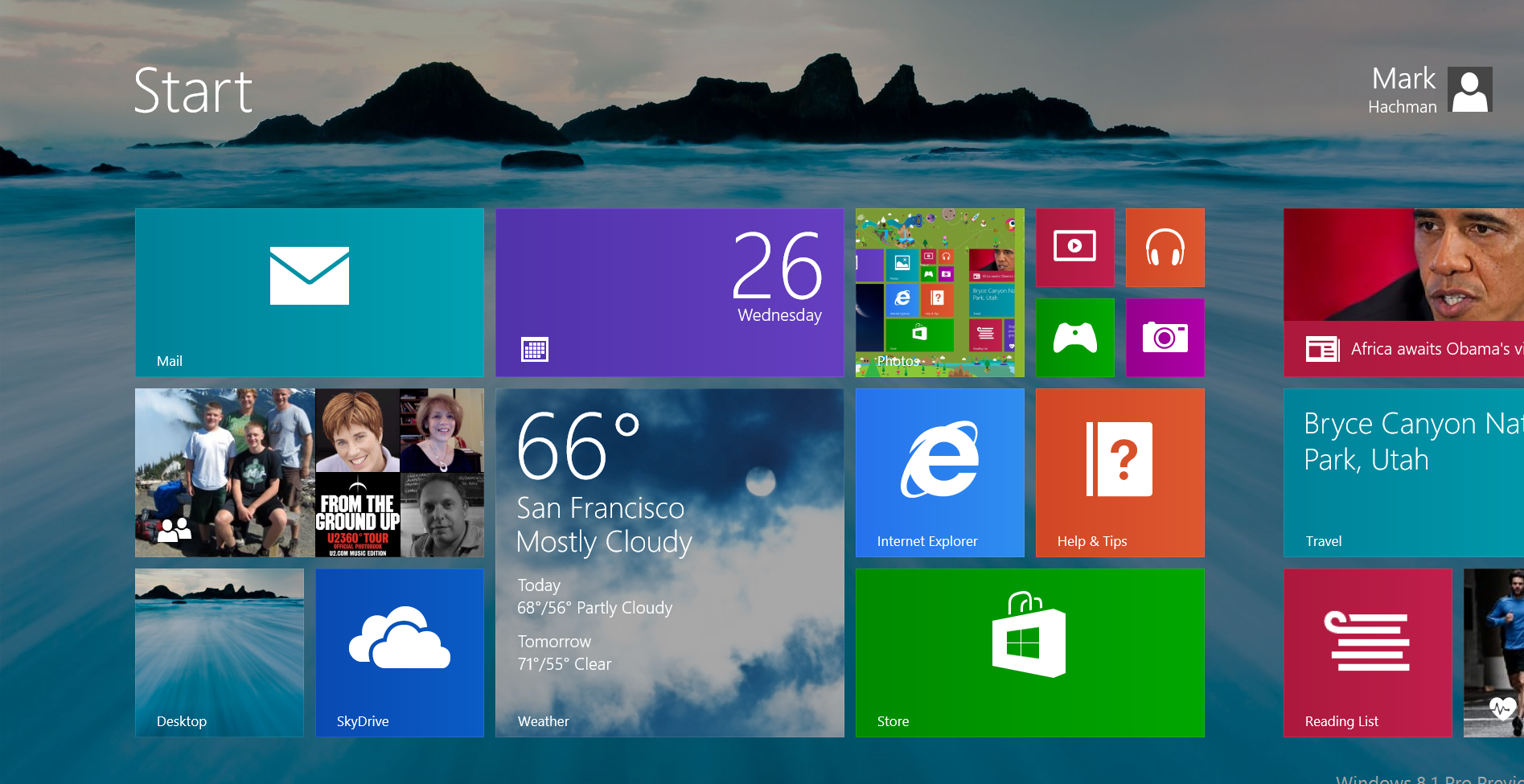
The preview holds few surprises for those who've been keeping track of the Windows 8.1 saga. Yes, it includes the new boot-to-desktop option, and Microsoft has re-organized the Start page to make finding apps easier. Within the desktop, the Windows flag serves as a faux Start button, although it’s really just a shortcut to the Start page.
The expected personalization options are there, including dynamic desktop art as well as the ability to share a background between your desktop and Start page. But there’s also a flood of other tweaks, apps and features, making this free upgrade a tremendous value in terms of volume alone.
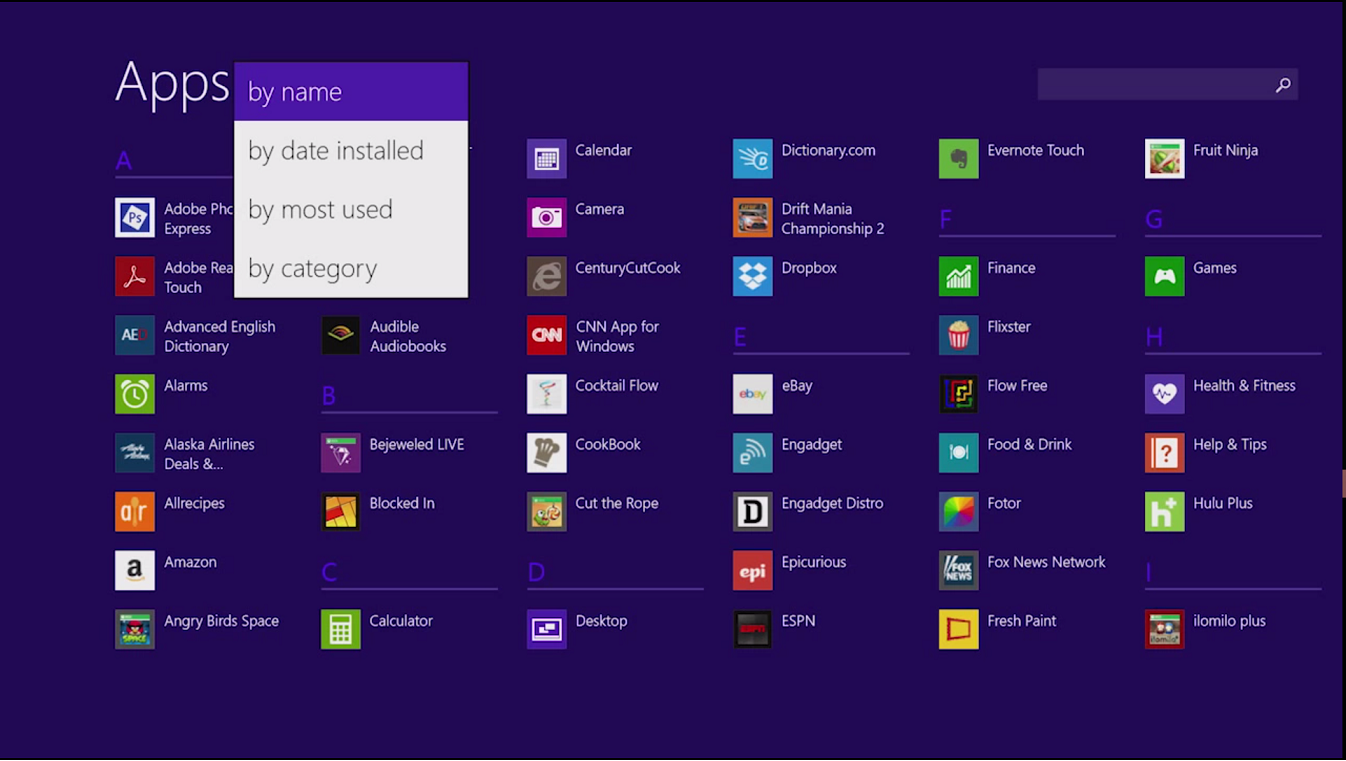
Are new sorting options the answer to Microsoft's Start problems?
Some highlights: There's a new Bing Food & Drink app that you can wave at to turn the page, Samsung Galaxy S4 style. There's direct control of 3D printers (yes, 3D printers). You can turn the PC into a Wi-Fi hotspot, and stream 1080p video via Miracast to the Xbox One. And Microsoft also confirmed that it has “alpha code” of Microsoft Office for the Modern interface that’s due some time in the future.
Although Microsoft will key the Windows 8.1 release to your Microsoft ID account, it seeded the upgrade to journalists and analysts on Surface Pro loaner units. While not much grabbed me from the get-go, poking into the nooks and crannies has been rewarding.
Friendly, but frustrating
Because Windows 8.1 is a connected operating system, booting up the Surface is a rather blah experience. But after connecting your Microsoft account, enabling SkyDrive, and diving into the personalization options, Windows 8.1 comes alive. It’s just a lot harder than it could be.
The Start button! It's back! Well, sort of.
A key goal of Windows 8.1 is to offer a highly personalized experience. Indeed, one of the many additions to the Start page is the “Personalize” option under Settings. To get there, swipe in from the right, select Settings, and then “Personalize." Once you do so, you’ll have an option to add different backgrounds, with various color schemes. I’m not sure if the Surface I had simply lacked the dynamic ‘Dragon” and “Robot” backgrounds that Jensen Harris, part of the Microsoft Windows User Experience team, demonstrated for reporters Tuesday. But Windows 8.1 either synced over the new backgrounds by copying over my old background options, or the content wasn’t there.
Windows 8.1 also adds the ability to share a background between the desktop and Start page. It's a pleasant feature that offers the impression that your desktop and Start page are simply two sides of the same coin. Adding this capability is harder than it looks, though: I had to manually change the desktop background, then wait for it to show up in the “Personalize” tab in the Start commands. A “sync Desktop and Start backgrounds” option would solve the problem, but it isn’t there (more on that later).
Start screen backgrounds: Not as nice as the dynamic backgrounds Microsoft showed off, but they tie the Start screen and desktop together.
In fact, when I turned off syncing on my personal PC tied to my Microsoft account, the beach background I had on my Windows 8.1 desktop disappeared from my Start screen, but remained as a Personalize desktop option. Clicking it didn’t work, and it remained there as an unusable choice.
Another personalization feature is available via the “Change PC Settings” option: You can turn your PC into a photo frame with photos displaying on your lock screen. Unfortunately, I couldn’t get that feature to work, and it wouldn't pull my photos from SkyDrive. Windows 8.1 does offer the ability to sync apps, as well as Start screen tiles and layouts, Web browser shortcuts, mouse and printer settings, and more. For right now, however, I’m not sure the sync settings are that useful, especially between Windows 8 and Windows 8.1 devices.
The "Change PC Settings" option also allows you to turn off “hot corner” access to the Charms and recent apps, eliminating one of the more confusing features of Windows 8.
Part of the problem is that Microsoft has hidden its power-user options within the desktop. In Windows 8, pressing the Windows key + “X” brings up a handy menu of commands, including the Control Panel, Device Manager, Disk Manager, and others. Within 8.1, you can access that power-user menu via a “long press” of the Windows flag/Start icon.
Microsoft hides some nifty features inside this menu, including Boot to Desktop.
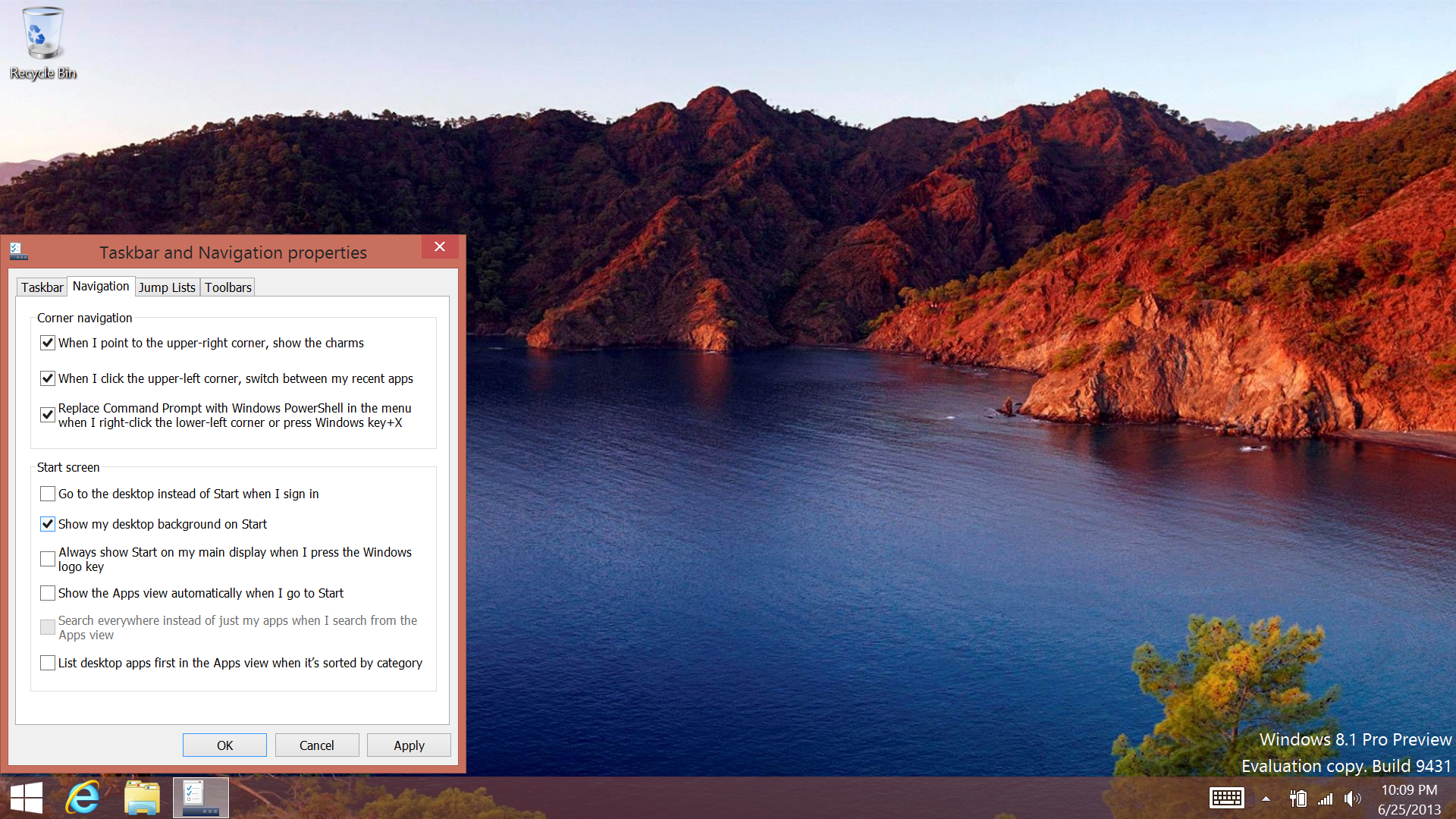
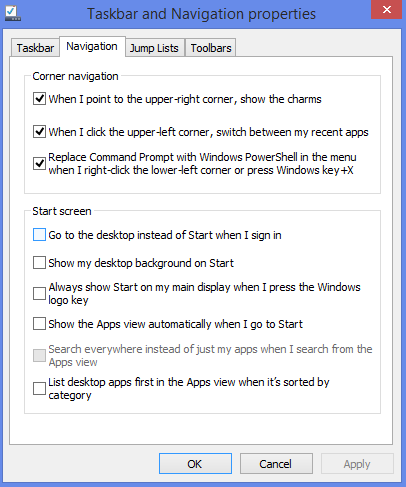
But right-clicking the taskbar at the bottom of the desktop brings up the really important stuff. A new “Navigation” tab within the Taskbar and Navigation Properties contains the boot-to-Desktop option; the option to sync the background of the desktop and Start screen; and the option to show the Apps view automatically every time you view the Start screen. These features (and others) are all incredibly useful options, but they're almost impossible to find unless you know what you’re looking for.
Smart Search: the command line for Windows?
One major complaint about Windows 8 concerns finding applications: Instead of clicking though a Start menu (as in Windows 7), you have to visually search within a mass of tiles, or key in a search from the Start page. One of the ways Windows 8.1 solves this problem is by organizing your software into an “All Apps” collection that can be accessed by swiping up from the Start page. The list can be organized several different ways, including most frequently used, last accessed and, of course, alphabetically.
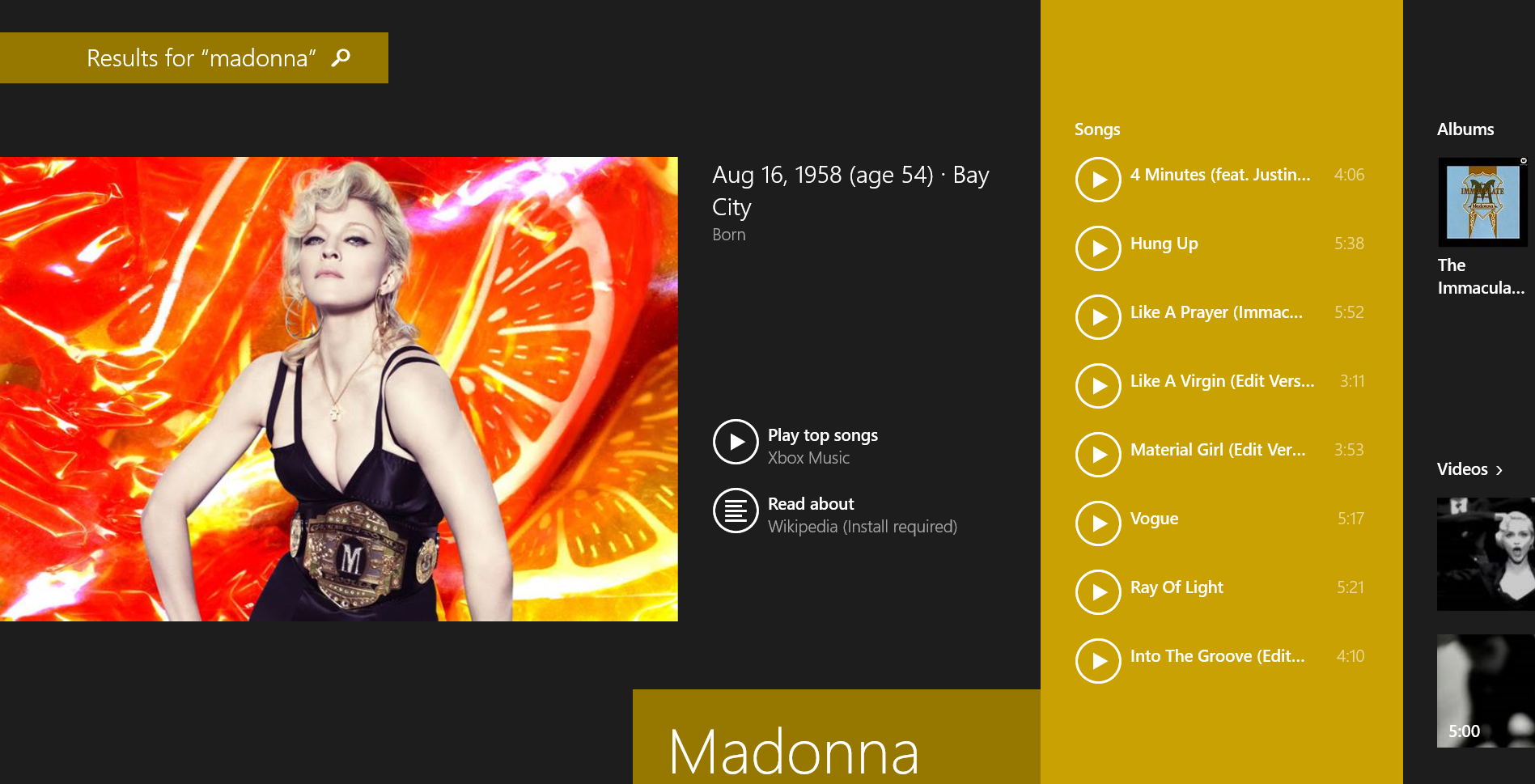
Madonna gets the hero treatment within the new Search app, with a bio, music, videos, and a flattering picture.
Microsoft has also significantly improved its search capabilities. Start typing, and a search window opens to the right, as it did in Windows 8. But the new Search capability searches the Web, your PC and SkyDrive, among other locations. Search for “Madonna,” and up pops a lovely, enormous “hero” page with the singer's biographical information and discography. (The Surface that Microsoft gave me linked the discography to Xbox Music, so I quickly switched to BB King for the rest of the night.) The amount of possible results could grow enormous, but Microsoft does a fine job of managing the output. Sadly, mail can’t be searched—yet.
Xbox Music provides a free “radio station” of a particular artist or genre, no subscription needed. Microsoft executives said that it would auto-import playlists on a web page, such as the lineup of artists at a music festival, later this year.
A whole lot of Windows 8.1 apps
From a macroscopic level, Microsoft has also added flexibility to its Modern apps, adding the capability to “snap” up to four apps on a standard widescreen monitor. (Adding another monitor allows another four.) Only two windows—the standard for Windows 8—can be snapped on a Surface, however, due to scaling issues. I wasn’t able to test the "four-up" feature on a full-sized monitor, as I lacked a mini-DVI adapter for the Surface review unit.
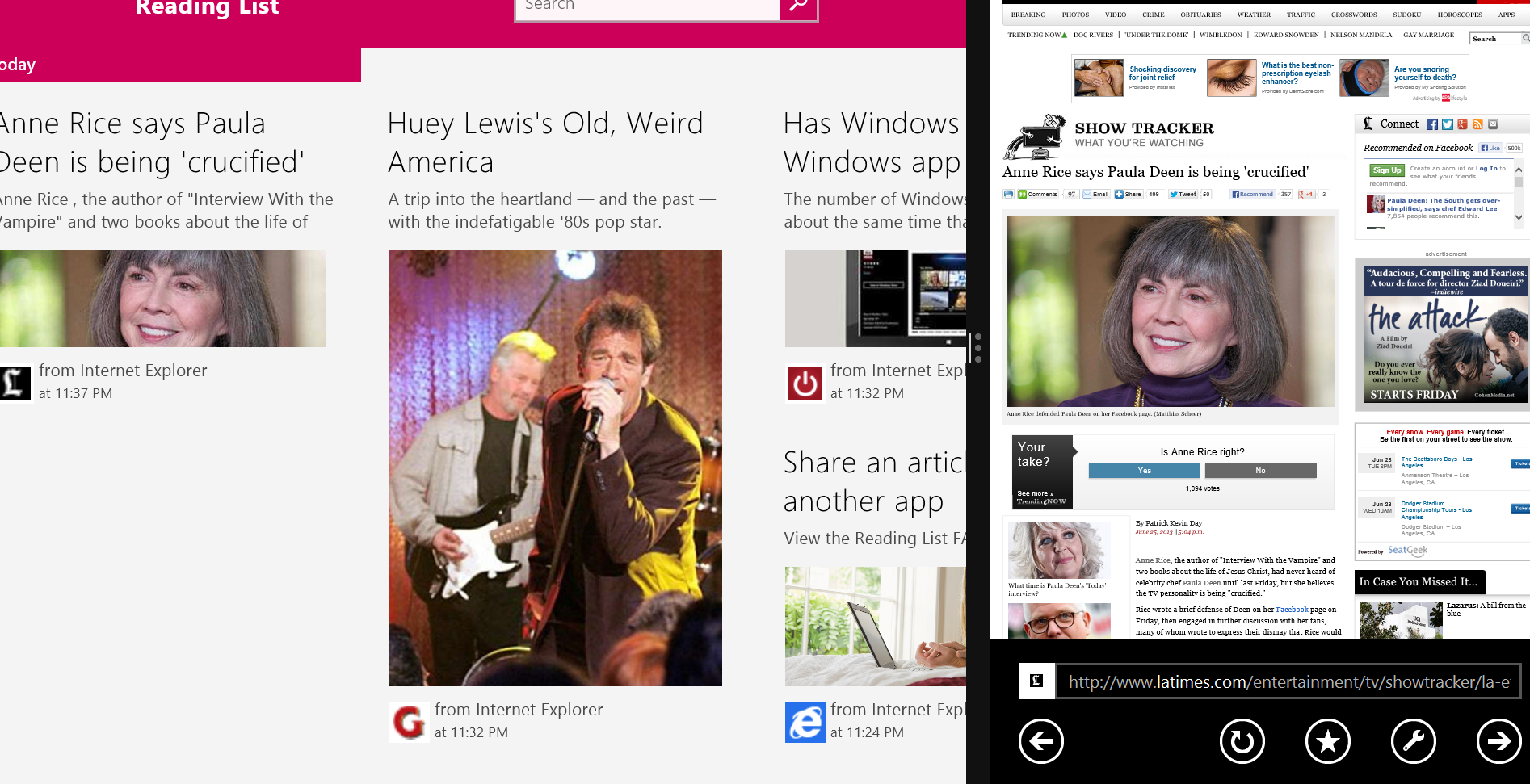
Meet Reading List, one of the new Windows 8.1 apps.
On a more microscopic level, a number of apps have either been rewritten or totally added for the Windows 8.1 release. Among these is Reading List—sort of a Microsoft-branded Instapaper. If you open up a web page, then bring up the “Share” charm, you can save whatever you're reading for later. It works as you might expect, but with some limitations. First, you need to remember to click the little “air mail” icon in the upper right of the Reading List tab. Second, it only works with the Modern version of Internet Explorer, rather than the desktop version. Stories then open in IE for later reading.
One of the more significant additions is Internet Explorer 11. It now includes side-by-side browsing and syncing of favorites, tabs, and settings across all Windows 8.1 devices. Microsoft also says it loads pages faster. We weren’t really able to test all these capabilities (we only had one Windows 8.1 device, for example), but the browser seemed to do the job just fine. Internet Explorer 11 can also prevent extensions from launching until it has a chance to hand of the code to an anti-malware program for scanning.
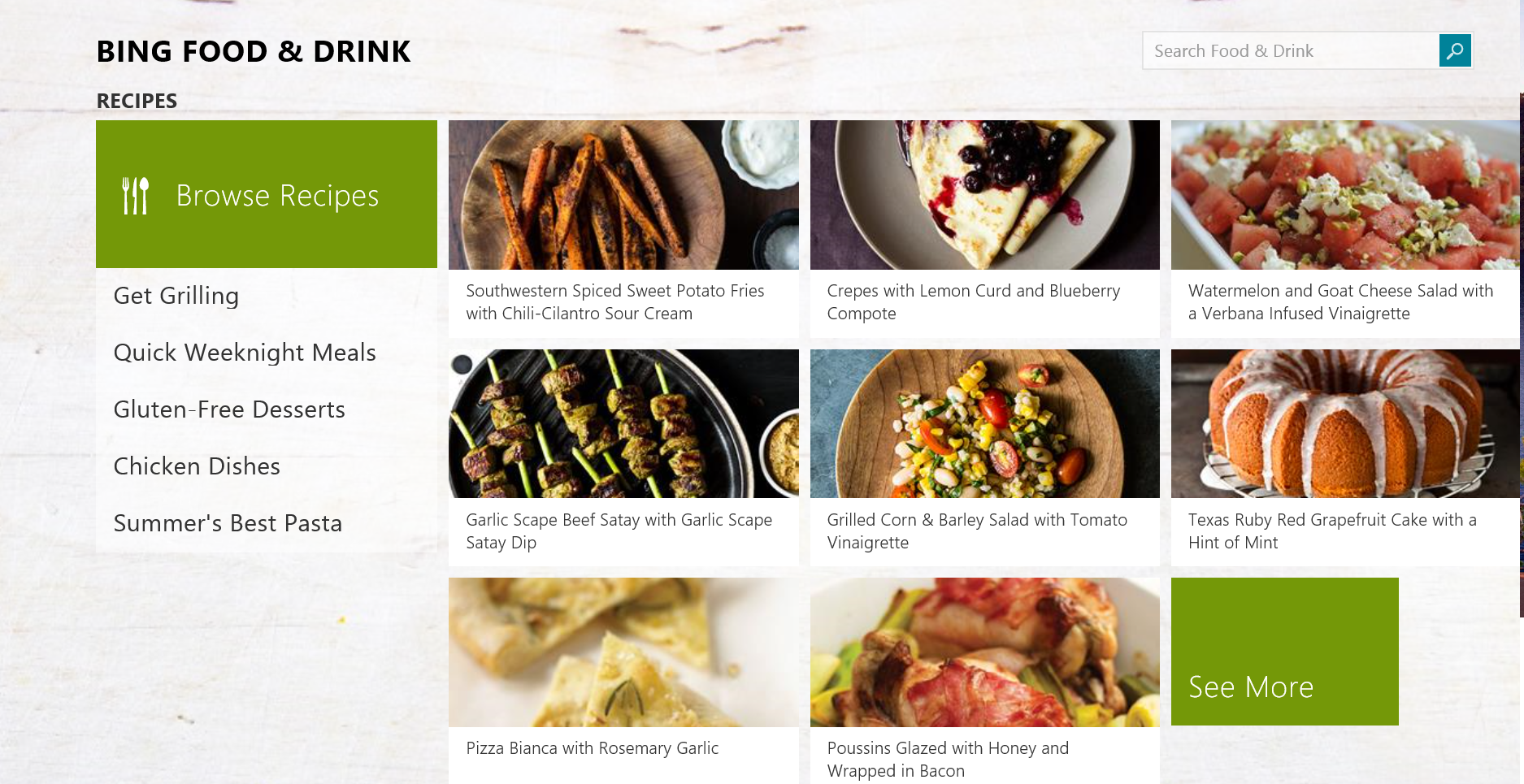
Windows 8.1’s Food & Drink app.
Food & Drink is a new built-in app that includes a meal planner, a shopping list tool, and a searchable database of recipes that can be augmented with content you find online. The list of recipes isn't very remarkable, but it includes a nifty trick: You can enable a “hands-free” mode, and flip through pages just by gesturing above your device. The idea is to avoid gumming up your computer or tablet with your chicken-spattered paws, but you’ll still need several clicks to enable hands-free mode, and the Surface's webcam practically required my hand to cover its lens.
Health Tracker is essentially Food & Drink for exercise. You can check out a range of exercises; monitor nutrition, diet, calories, blood pressure, and other health attributes; and examine an encyclopedia of drugs and health conditions. It’s all laid out well, and can sync with Microsoft’s HealthVault online record storage.
The new Health Tracker app from Bing offers a wide variety of health info.
Microsoft also promised that a new version of Skype will alert users to incoming calls via a popup message on the lock screen, and then allow you to begin talking immediately. I created a test account on a nearby Windows 8 machine, then installed Skype on the Surface and called myself. I was able to see the alert, but I had to log in as normal to begin talking. Clicking on the alert didn’t work.
SkyDrive is also supposed to gain photo editing capabilities, allowing you to simply swipe your screen for a range of photo filters and editing features. For some reason, this didn’t work for me, and the seemingly related Photos app didn’t have this capability either.
Mail, another app that Microsoft’s Harris described as updated, also seemed to be exactly the same in the Windows 8.1 build loaded into my Surface Pro loaner unit. Nonetheless, when all is said and done, Mail’s inbox will allow you to flag and sort messages by sender, and social updates from Twitter and Facebook will be able to be separated into their own folders, Harris promised.
In addition, Windows 8.1 boasts a new Voice Recorder app, a new Alarms app, and a spiffy new Calculator app. (Note that there are both desktop and Modern versions of Calculator, if you want to test one against the other.) Microsoft promised that Sports, News, Weather, Finance, and Travel have also been updated for Windows 8.1, but I didn't have time to dig into all the apps before posting this article.
Windows Store gets a facelift
One subtle change in Windows 8.1 is the elimination of the little number at the bottom of the Windows Store icon. That’s because apps now auto-update in the background.
This sounds good on paper, but comes with a caveat: According to Microsoft’s Ted Dworkin, partner director of program management for the Windows Store, apps won’t necessarily alert you if they’re updated and their access policies change. This means that if an app wants more data, Microsoft will quietly grant permission unless certain undisclosed permissions are asked for, triggering a user notification.
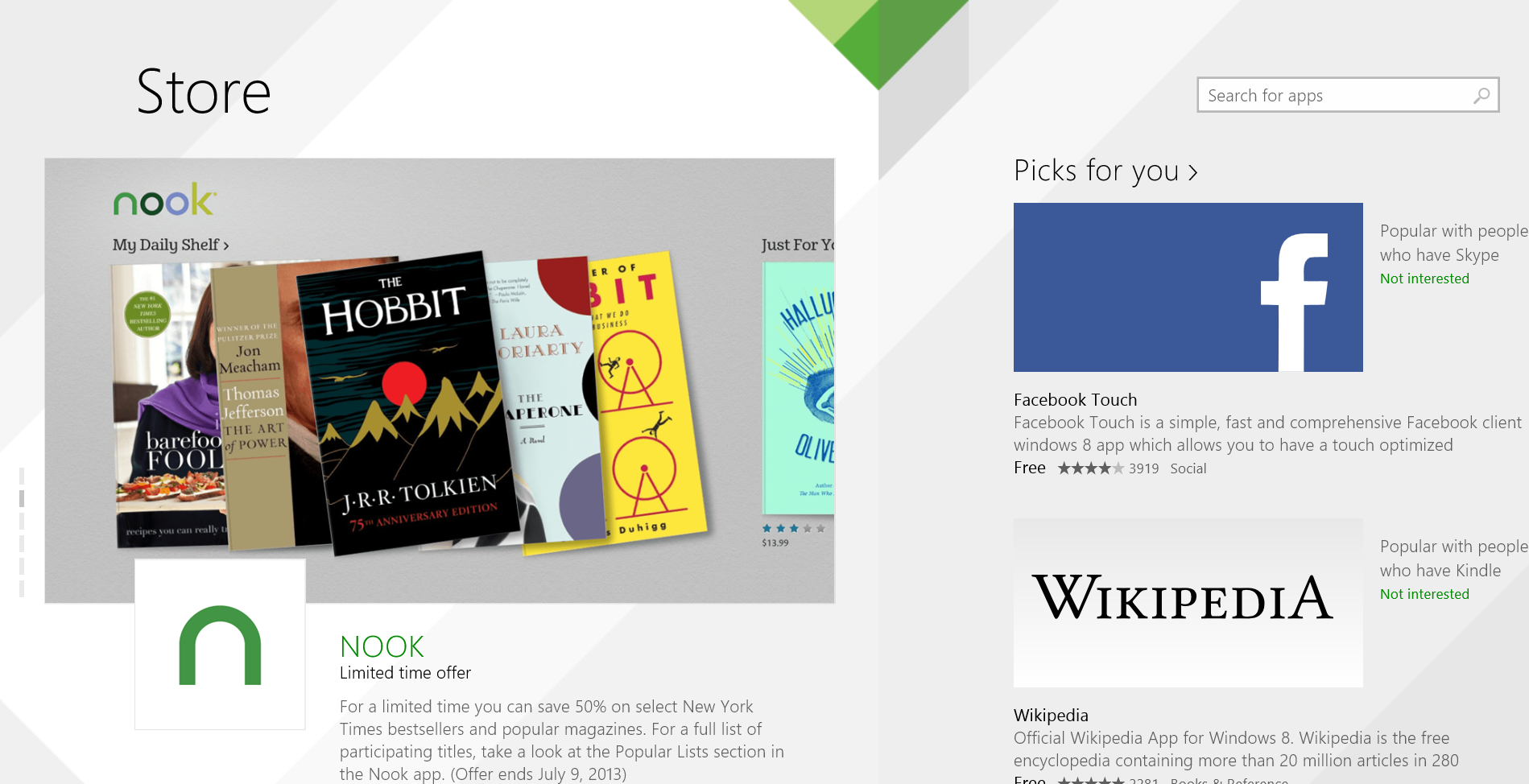
The revamped Windows Store now devotes the first screen to a single app.
Within the Windows Store app itself, look for the first “page” of tiles to go away. Instead, Microsoft is curating apps, pushing forward a single software title that it thinks most users will like. There's also a special selection culled for individual users, based on their preferences.
Microsoft will also now allow in-app purchases for special costumes and other consumables in games, and will offer stored-value options, allowing you to carry a balance of dollars, yen, euro, or other currency from which to buy apps, movies, music, and so on. In Windows 8.1, you will also be able to install apps on an unlimited number of Windows devices, but Microsoft will monitor user activity to make sure apps aren’t copied across, say, an entire dormitory’s worth of hardware.
Windows 8.1 for businesses
If you read our earlier report on Windows 8.1 for businesses, you’ll get a good grasp of what Microsoft intends for the enterprise features of the new OS.
Using a featured called Assigned Access, a Windows 8.1 PC can be “locked down” to boot to a single app. For example, you could lock down PCs to a dedicated test-taking app, preventing students from launching Internet Explorer during exams.
The Start Screen configuration can be exported to an XML file, and enforced as a policy. And Windows 8.1 has been designed with Mobile Device Management in mind: Users get to bring their own Windows 8.1 devices into the workplace, but businesses can put their own apps and documents on the user hardware—and revoke access to this material as they wish.
Other new capabilities more directly benefit employees: Users can set up their PCs as Wi-Fi hotspots, sharing a paid-for work connection, and new “virtual smart cards” can be used as tokens to launch VPNs. Third-party VPNs now work with WIndows RT as well, Dustin Ingalls, a group program manager at Microsoft, said.
Prettier but not perfect
So what’s the bottom line? Right now, Windows 8.1 offers somewhat moderate improvements to a controversial design, together with a few bugs. And, personally, I would have appreciated better organization of the new personalization options.
For now, my thesis remains unchanged: Windows 8 bolts a tablet interface on top of a PC interface, and most people who approach it from the PC perspective are in for a shock. When it comes to user interface design, familiarity breeds not contempt, but rather content—content, happy users who would rather see their beloved interface polished up, but not overhauled entirely. Over time, however, Microsoft will benefit from user familiarity, as people learn how to navigate Windows 8 (and all its updates) and the Modern interface becomes the new normal.
Windows 8.1 is Microsoft’s chance at a do-over. So far, the company has stuck to its guns, offering a few changes to ease the transition from Windows 7. But the company has also promised to increase the pace of change, with more frequent updates. I like what I see—a company that’s scared of becoming irrelevant, listening to its users. I appreciate what Microsoft has done with Windows 8.1, but I like a responsive Microsoft even more.
After months of teasing and torture, the Windows 8.1 Developer Preview is finally here, ready to deliver us from many of Windows 8’s glaring flaws. You’ve no doubt already heard about Windows 8.1’s biggest new features: The Start button is back, Bing owns the Search charm, the split-screen Snap feature is customizable, yada yada yada. You know the drill.
What hasn’t been talked about much are the subtler changes—the hidden secrets tucked away in the dark corners of Windows 8.1, whispering and waiting for a turn to shine rather than shouting their proverbial presence from the proverbial rooftops.
No, these gems aren’t as flashy as Windows 8’s newfound ability to sync apps and Internet Explorer 11 tabs across multiple devices, but they’re arguably just as (if not more) handy. And there’s no way you’ll find them unless you dig deep...or read this enlightening guide.
Shut down from the Start button
Let’s start with something basic, but far from obvious.
Yes, the Start button is back...but the Start menu isn’t. So you still need to swipe through a multiclick process involving the charm bar if you want to shut down your PC—if you don’t know about the Start button’s secret menu, that is.
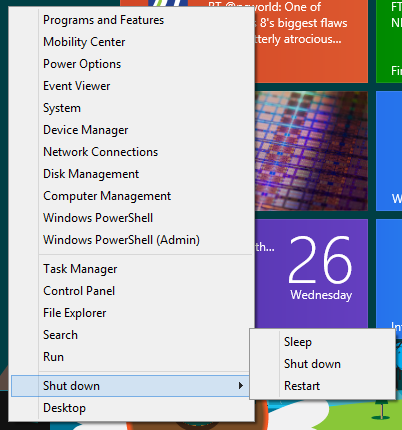
Right-clicking the Start button that appears when you hover your mouse cursor in the lower-left corner of the screen brings up a bevy of powerful options, including quick links to deep stuff like Disk Management and Command Prompt tools.
Now, the menu itself isn’t new to Windows 8.1. What is new is the addition of a Shut Down option to said menu. Hovering over it for a second gives you options to shut down or restart your PC right then and there, no fiddling with hidden menus required.
Boot to desktop or All Apps, and more
The Taskbar Properties option is another old friend with a subtle new look—and a crucial one for desktop diehards. Did you hear that Windows 8.1 lets you boot directly to the desktop on start up? It does, but Microsoft clearly doesn’t really want you to do it, since the option is buried in this obscure corner of the OS.
Head to the desktop, right-click the taskbar, selectProperties, and then open the brand-spankin’-newNavigation tab. There, you’ll find new options for disabling the uppermost hot corners. Those options are also available in the modern-style PC Settings, but many Start screen options can only be found here.
And how handy-dandy they are! Want to boot directly to the desktop or the All Apps screen? Here’s your chance, and the other selections are just as useful. (Show the desktop background on the Start screen? Yessssssss.)
Open the Metro version of IE 11 in multiple windows
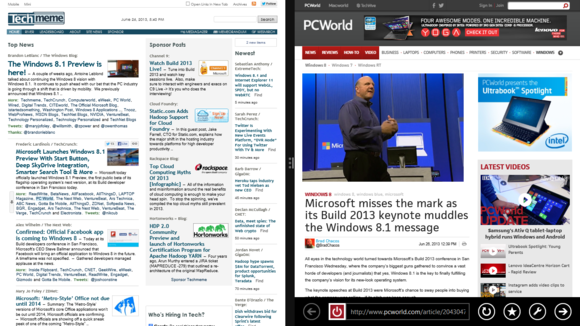
While you’re busy taking advantage of all the hot resizable Snap size action in Windows 8.1, don’t forget that you can now have a single app open in multiple Snapped windows—something you couldn’t do in the original Windows 8 release.
Well, kinda.
Despite a lot of effort, I haven’t been very successful in getting that feature to function in the Windows 8.1 Developer Preview. Trying to open an app twice—or Snapping an app to one side of the screen and attempting to open a second instance—simply doesn’t work.
(Click to enlarge.)
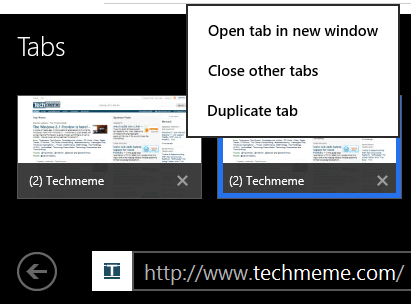
You can open multiple instances of the modern version of Internet Explorer 11, though. If you have multiple tabs open, you can long-press one of them and selectOpen tab in new window in the resulting pop-up box. Alternatively, long-pressing a link on a webpage brings up several options at the bottom of the screen, including that ‘Open tab in a new window’ dialog.
Selecting that option causes the page to appear in another IE 11 window, and Windows 8.1 helpfully Snaps both windows into a 50/50 split.
The great gigs in the Sky(Drive)
SkyDrive takes on a much bigger role in Windows 8.1, driving Microsoft’s vision of a seamless, cloud-connected world even further.
In fact, SkyDrive is so vital an underpinning to Windows 8.1 that Microsoft dedicates an entire section to it in the modern-style PC Settings. A vast number of settings now sync and follow you from device to device by default—including modern apps, woohoo! But if you really want to live in the cloud, you’ll need to enable some options buried three or four levels down.
(Click to enlarge.)
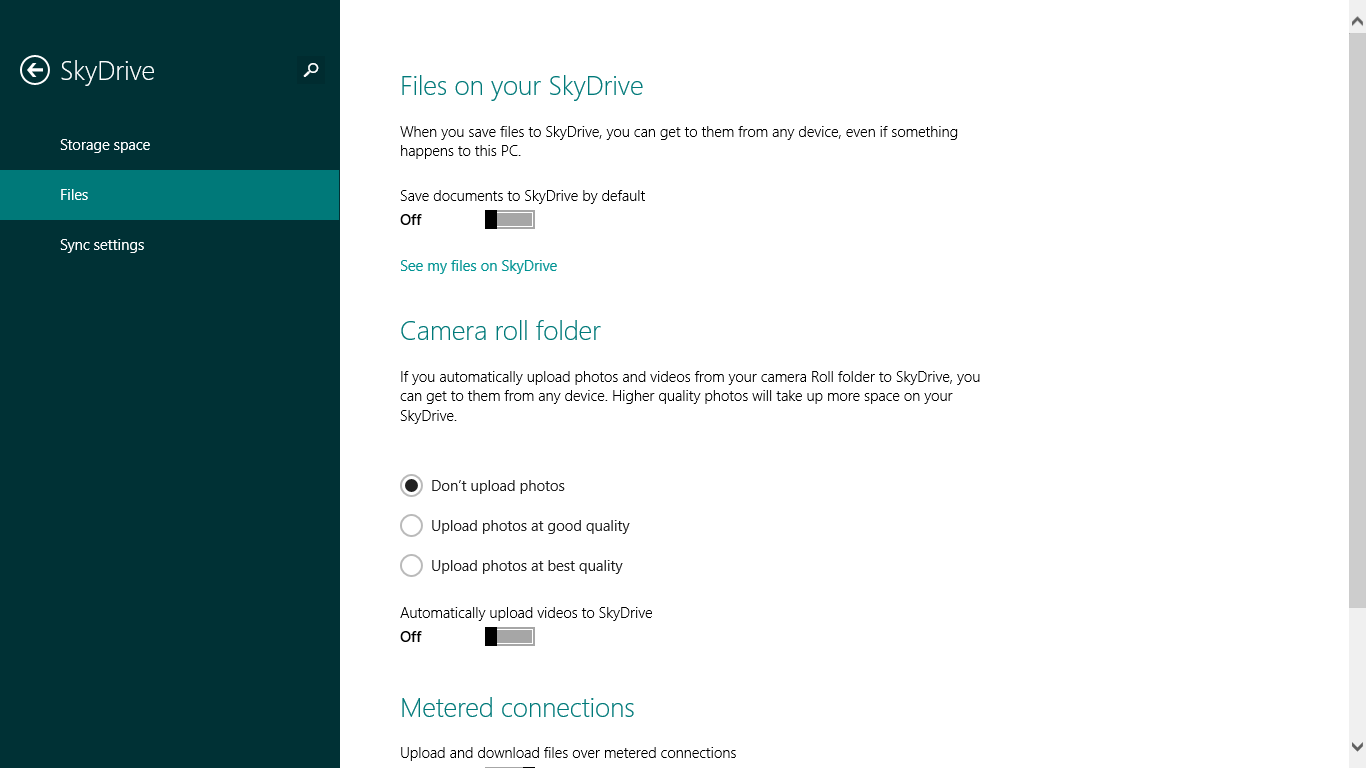
Open the charm bar, and select Settings > Change PC Settings. From there, open theSkyDrive options and select Files in the left-hand menu bar.
Here you can acquire the ability to save documents and snapshots from your Camera Roll folder to SkyDrive by default, a downright awesome new option if you want to be able to sit down at virtually any Windows 8 computer and have it feel like your own.
Hush, my darling
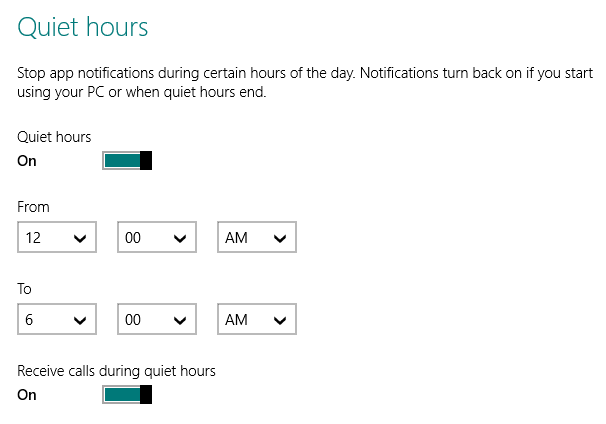
Relaxing ain’t easy if your gadget blasts alarms throughout the day. Windows 8 has joined Apple and Android in embracing notifications, which make sounds and light up your lock screen even if you’re not holding your tablet in your hand. Fortunately, Windows 8.1 lets you silence the cacophony with its new Quiet Hours setting.
This one’s buried, too. Open the Settings charm, and navigate to Change PC Settings >Search and apps > Notifications. Scroll down the page a bit until you reach Quiet Hours. By default, Windows 8.1 is set to go silent from midnight to 6 a.m., but you can change the window to any time frame you desire.
Get a grip on your apps
(Click to enlarge.)
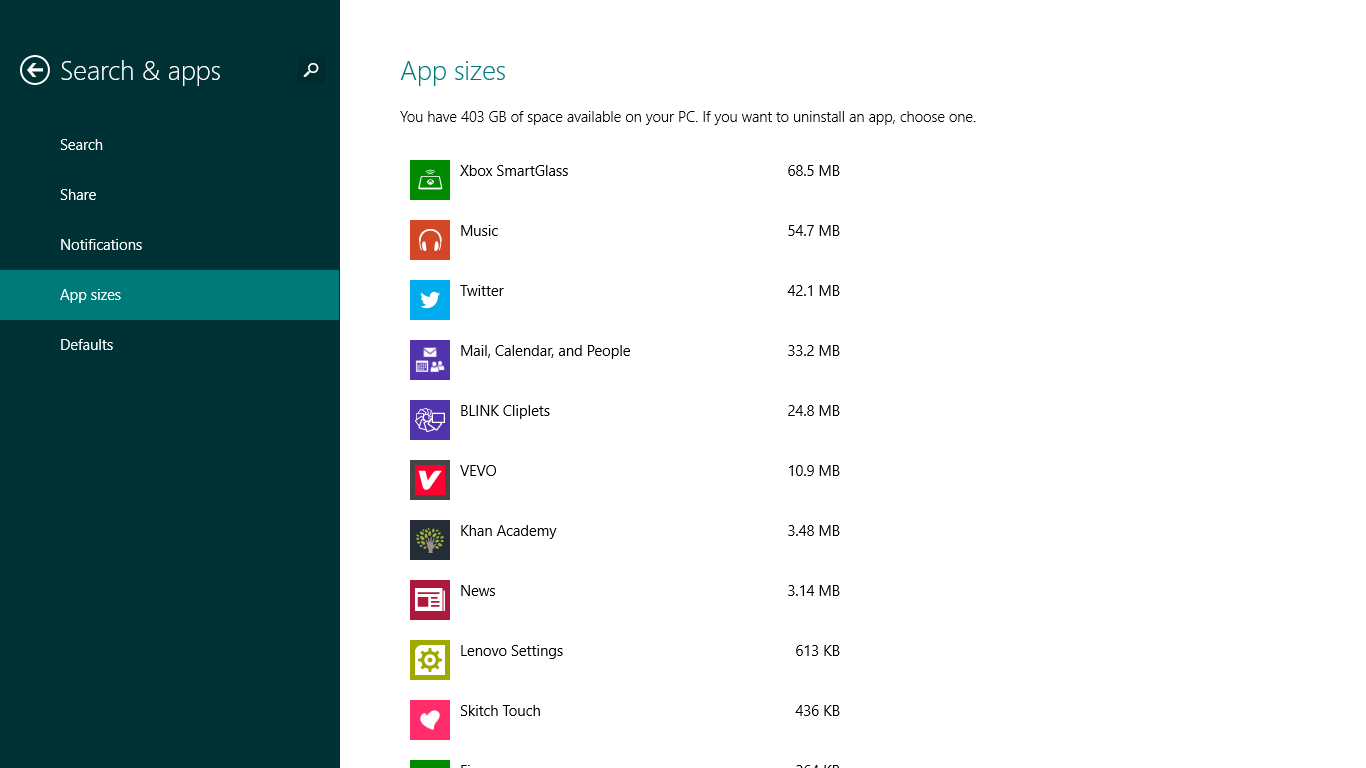
Something really irked me about the modern apps in the vanilla version of Windows 8. No, I’m not talking about their seas of wasted space (Windows 8.1 didn’t fix that!). I mean the fact that they were incredibly pesky to manage from anywhere except the Start screen. Modern apps don’t show up anywhere obvious in the desktop File Explorer’s folder structure, and you can’t eliminate them from the Control Panel’s Programs & Features interface, either. Bleh.
Windows 8.1 changes that. Huzzah!
Navigate to the Search & Apps section once again, and select App sizes in the left-hand menu. The screen populates with a full listing of all your installed modern apps, complete with the file size of each app. If you’re looking to free up some hard drive space, you can click an app to bring up an uninstall option.
Wireless Miracast pairing
People don’t likes wires, and neither does Windows 8.1. Like Android 4.2, Microsoft’s OS update includes full support for the fledgling Miracast wireless display standard, which basically acts like Apple’s AirPlay technology. It’s your PC screen, beamed to your TV or monitor as if by telecommunications magic!
Miracast is so new that you might have trouble finding compatible television sets at stores near you, but you can pick up Miracast receiver dongles that transform any TV with an HDMI port into a Miracast-compatible display. Even better, when Microsoft’s Xbox One console lands in time for the holidays, it’ll be a fully capable Miracast receiver, further deepening the synergies between Windows 8 and Xbox.
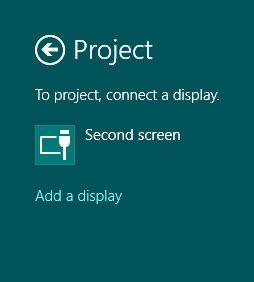
If you want to connect your Windows 8.1 device to a Miracast receiver, you can dig deep into the modern-style PC Settings. But the easier option is to open the Devices charm and select Project > Add a display. If there’s a Miracast display nearby, Windows 8 should find it.
A whole lotta printing going on
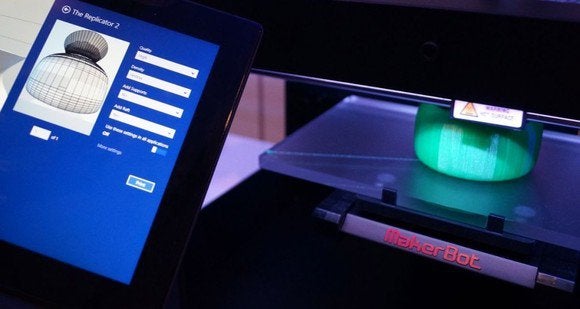
Windows 8.1 brings a bevy of improvements to the way it handles the more exotic printers popping up these days. For one thing, Windows 8.1 packs 3D printer support in the form of a driver and a native API, and hopefully—hopefully—that will make the 3D printing process as simple as the traditional 2D printing process, rather than the complicated export-filled mess that it is now.
The idea is to allow you to kick 3D printers to life using the Print option under the Devices charm, so you can print from directly within that oh-so-fresh modern interface—assuming the printer’s software takes advantage of Microsoft’s support. Check out the image below to see Windows 8.1 printing to a MakerBot Replicator 2 3D printer.
GEEKWIRE
But the cutting-edge printing action doesn’t stop there. Windows 8.1 also includes support for NFC printers. If both your Windows device and your printer are members of the (currently rare) NFC-enabled breed, simply tapping one against the other can automatically pair the two devices for hassle-free printing action.
And if NFC or 3D printers are just a bit too adventurous for you, you’ll be happy to hear that Windows 8.1 also includes Wi-Fi Direct printing capabilities. What does that mean? Simple: You can connect directly to a Wi-Fi Direct-enabled printer without having to jump on a Wi-Fi network or fuss with installing software, though the exact method will depend on your printer and device
Regardless of personal opinion on Google, it’s pretty fair to say that a significant portion of technology enthusiasts make use of at least one of their products – or services – on a day-to-day basis. A large section of us regularly allow the company to handle our email needs through Gmail, and it’s been evident in recent times that Google has been working fairly tirelessly in an attempt to enhance its extremely popular email offering and make everything a little less cluttered for all of us. The latest of those efforts has manifested itself with a fairly significant update to Gmail for web and mobile based users, that now offers a tabbed inbox experience with mails sorted into varying categories for easier organization.
If your Gmail inbox is causing concern and could do with an organizational overhaul then follow the extremely simple steps below to enable the new features for Gmail through a web browser.
Step 1: Open up your web browser of choice and log into your Gmail account through the usual methods.
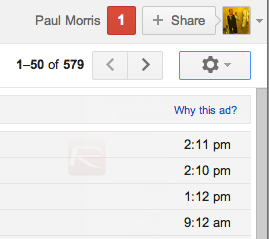
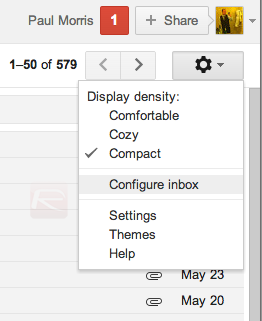
Step 2: Select the Cog/Settings icon from the top right-hand side of the interface. This is the same action that is generally used to access Gmail themes, display density and other available settings relating to the logged in Gmail account.
Step 3: Select the Configure Inbox option that should be showing approximately halfway down the list of available options.
NOTE: If the Configure Inbox option is now showing against your Gmail account then try logging out of the account and back in. If it still isn’t available then wait patiently as Google could be initiating a phased rollout of these features.
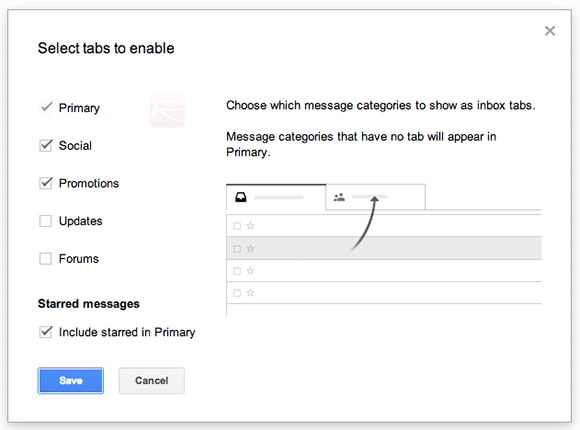
Step 4: By default, Google allows five different tabs to be set up on the inbox. The resulting popup will offer the ability to select the desired tabs before selecting the Save option to move on.
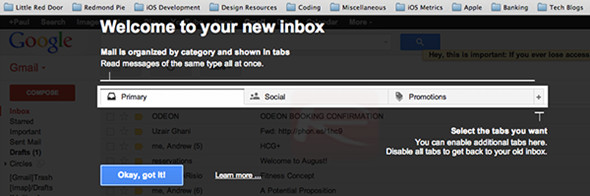
Step 5: A new overlay screen will appear that provides a little additional information about the new setup. Select the Okay, got it button to continue to the email inbox and see the new tabbed setup.
It’s already evident that the new categorized / tabbed organizational setup will not be to everyone’s liking, but it definitely has the potential to make things a lot easier for those Gmail users who have large and often unorganized inboxes.




 GEEKWIRE